Account Security: How To Report Suspicious Emails
Key Points
-
Use the new Report Phish button within Outlook to let us know about suspicious emails.
-
You no longer need to forward the email or call the TSC; use the new button instead.
-
The new method helps get the email reviewed more quickly.
Now, you can report suspicious emails with the click of a button within Outlook.
Previously, you could report suspected phishing emails by forwarding them to be reviewed by an on-call member of the Information Security team. With the new method, the email immediately goes through an in-depth analysis; if it is determined to be malicious, the message is automatically removed from any other mailboxes.
How To Report Suspicious Emails Within Outlook
If you receive an email that you think may be a phish, report it by clicking the Report Phish button using one of the methods below (depending on the version of Outlook you are using). You don't need to forward the email or call the TSC.
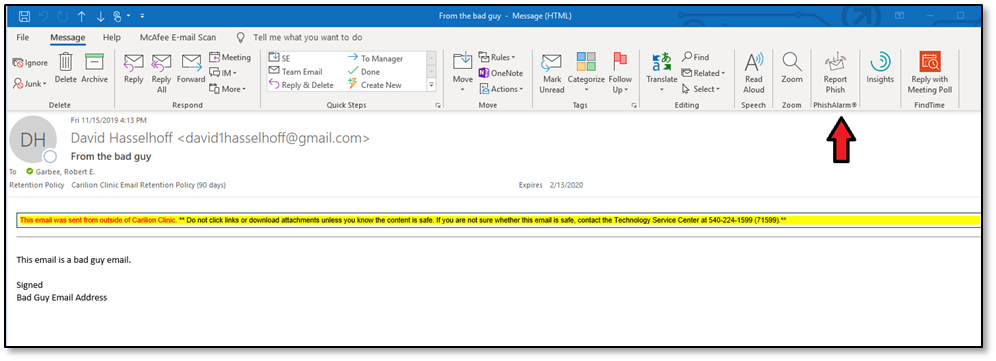
- In the desktop/full version of Outlook (below), report a suspicious email by clicking the Report Phish button located in the Message toolbar:
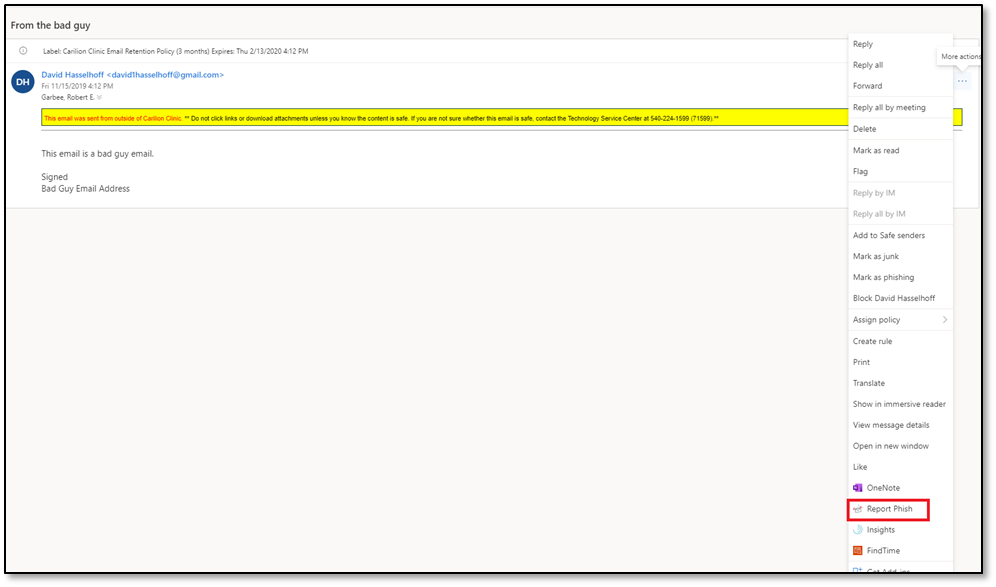
- In the Office 365/web version of Outlook (below), report a suspicious email by clicking the three dots at the top right of the message, then choosing Report Phish from the drop-down menu:
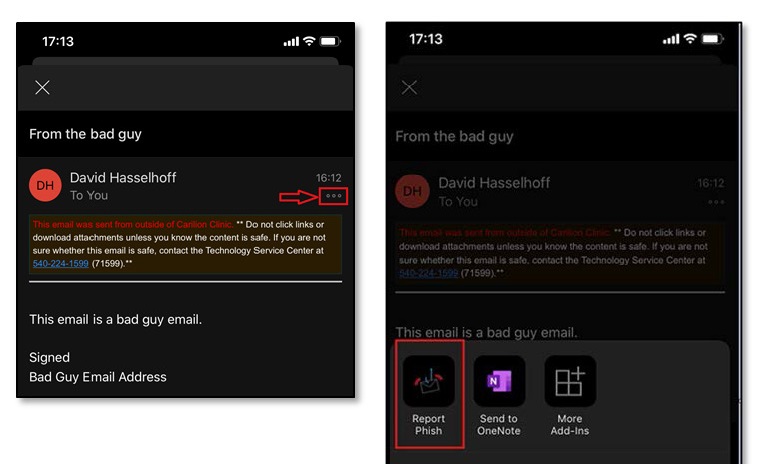
- In the mobile version of Outlook (below), report a suspicious email by clicking the three dots at the top right of the message, then choosing Report Phish from the option list.
After you report a suspicious email, you'll receive a pop-up message that appears to come from your own email address confirming that you have reported the email.
If you have questions, contact the Technology Service Center via Edison or by phone at 540-224-1599 (71599).
