We're Making it Easier to Find Your Requests in Employee Center
As part of the recent upgrade to Employee Center, we’ve enhanced the My Items feature to make it easier to track and manage your requests.
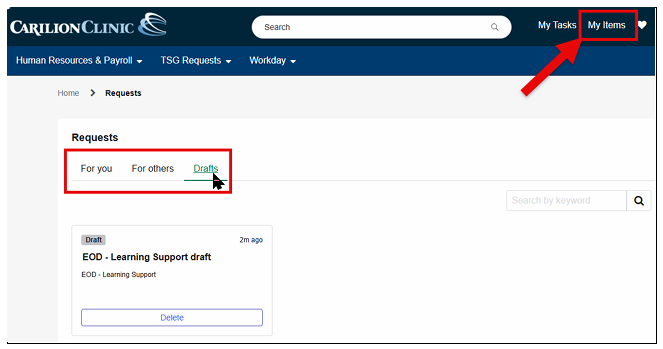
To access it, log in to Employee Center and select My Items in the upper-right corner. Here you can view:
- Requests submitted for you.
- Requests you submitted for others.
What's New?
When you open My Items, the default view now displays open requests submitted for you, making it easier to focus on items that still need attention.
You also have more search and filter options within My Items:
- Filter requests by item type, status, last updated date, or last opened date.
- Switch views between card view and list view based on your preference.
- Select For Others to view requests you've submitted on someone else's behalf.
- Select Drafts to complete requests you've previously saved.
- Use the Search by keyword field to find specific requests by entering an item name, item number, or keywords from the description.
You can still click any request to view the details and activity history, manage attachments, and communicate with the teams fulfilling your items.
For More Information
Need step-by-step instructions? See the Knowledge article How to View Requests in Employee Center.
For additional guidance on using Employee Center, see the Knowledge article Getting Started with Employee Center.
If you need assistance, contact the Technology Service Center in Employee Center or by phone at 540-224-1599 or 1-800-354-1599.
Employee Center was upgraded on Saturday, Aug. 8.
As part of the update, we have made it easier to find your requests.
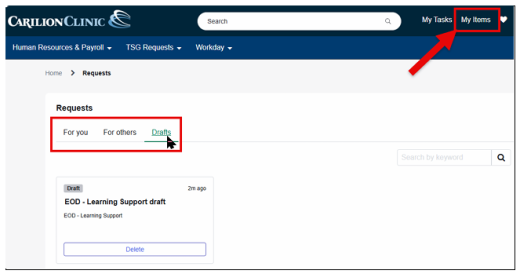
Just click the My Items link in the top right of the Employee Center homepage.
