Teams Tips and Tools To Put Your Best Face Forward
Technology makes it easy to connect when colleagues are working in different locations, but virtual meetings have different dynamics than in-person meetings. Here are some tips for making the most of your Teams meetings.
Let Your Co-workers See the Real You
We are fortunate to have tools that allow us to meet virtually, but we still need eye contact and social interaction. The visual cues we get from one another help us be better participants. At the very least, have your camera on at the beginning of meetings to greet one another, then turn it off if you are having technical issues.
When your camera is on, be mindful of how you "fit" on the screen. If you sit too close to the camera, it can give others the feeling of having their personal space invaded. Visually, this is much like having someone sitting less than two feet away. For a more comfortable visual distance, position your camera to allow space to be seen on both sides of you.
Use a Carilion-branded Background Image
If your background could be distracting to others, blur it or replace it with another image.
We have created a variety of Carilion-branded background images that you can download and use. Visit the Carilion Clinic Brand Center to download these images; you can also access the Brand Center from the Marketing & Communications hub.
To download a background image from the Brand Center:
- Log in to the Brand Center. If this is your first time using the Brand Center, you will need to create a username and password.
- Find a background image to download.
- Click the downward-facing arrow in the upper-right corner of the image.
- Click Submit. You may need to review and click ACCEPT on the Terms of Use to complete the download.
Take a Professional-looking Photo and Upload It to Your Teams Account
When your camera isn't on, your coworkers will see your profile picture. This flyer has some tips to help you take your own headshot. Here are some key things to keep in mind:
- Wear professional clothing — no logos, team names or something you wouldn't wear to work.
- If you are taking the photo inside, use a clean, solid-colored wall near a window with natural light. Turn off overhead lights.
- If you are taking the photo outside, use a location with shade and a simple background.
- Use the main (front) camera on your phone instead of taking a selfie. Ask a co-worker to take the picture, or use the timer feature if you are taking the photo yourself.
- Look directly at the camera lens. Take multiple versions of the photo so you have a few to choose from.
For More Information
For more details about the Brand Center, read this Inside Carilion article or visit the Marketing & Communications hub.
For more information about using Teams, check out the Microsoft Teams meeting playlist in Cornerstone OnDemand. You can also visit support.microsoft.com or contact the Technology Service Center via Edison or by phone at 540-224-1599 (71599).

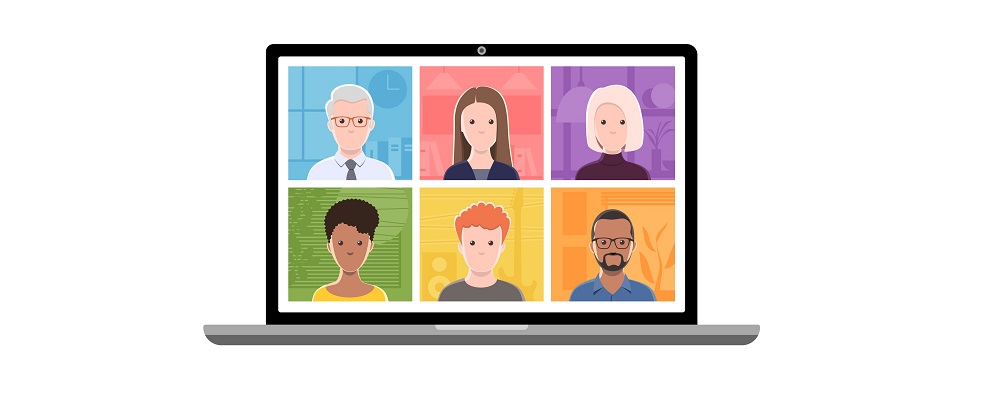
We have tools to help you maintain a professional appearance during your online meetings.
Visit the Carilion Clinic Brand Center to download Carilion-branded background images that meet our brand standards.
If it's your first time visiting the Brand Center, you will need to register.
We also have a flyer with tips to help you take your own headshot.
